Settings
Last updated:
How to change how prices are displayed in your selling guide
Changing the default price display settings
You can change the display of the prices. To do so, follow these steps:
Go to "Settings" in the left navigation.
Go to "General".
Scroll down and change the price display settings under "Price display".

When you leave the default settings as is, you will find the prices in the result screen like so:
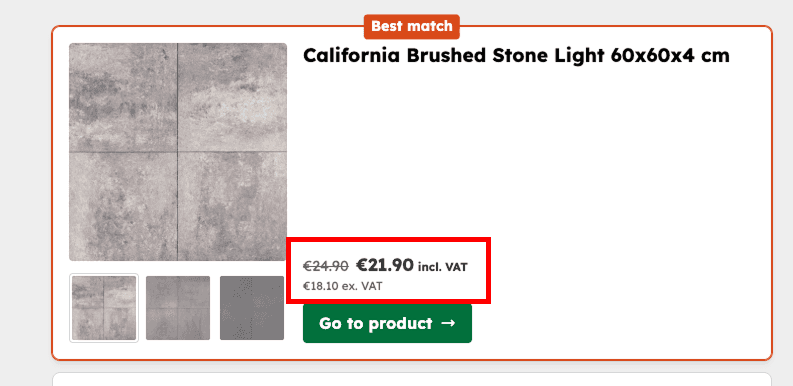
If you change some of the settings to a different value, for example US dollar and the display to ISO, we can can see the changes in the result screen.

Now you can see that the price is displayed as USD {amount} instead of € {amount}:

Language/country specific currency
In some cases, you'll need to display your products with a specific currency based on the country/language a user is visiting your site from. Just like you can control which language Qonfi uses (with the "qonfi-data-lang" attribute), you can also control which currency Qonfi uses by adding the "data-qonfi-currency" attribute when implementing Qonfi.
For example, if you want to use the polish currency:
data-qonfi-uuid="xxxxxx-xxxx-xxxx-xxxx-xxxxxxxxx" data-qonfi-lang="de" data-qonfi-currency="pln"
For a list of supported currency codes, please check out: https://www.iban.com/currency-codes.
Was this article helpful?
Yes
No

