Configuration
Last updated:
How to use the number input question type
The Number input allows the user to enter a number in response to the question asked.

Editing a number input question
Once you have added the "Number input" question type to your flow, you will have the following options:
Type: Allows you to easily change the type of question.
Category: Allows you to give the question a certain category.
Question: The actual question you want to ask your users.
Text: Extra text for the question. This can be useful to explain various things.
Show in product matches list:enable this in order to show the input of the user on the result page as a match label.
Default value: A default value for the text input. For example: ‘5’.
Minimum value: The minimum value for the input.
Maximum value: The maximum value for the input.
Steps: Defines the number of decimals allowed for the input and the increment size for the range slider. For example, a step value of
0.5allows values such as0,0.5,1,1.5,2, etc.
Unit: Show a unit suffix in your number input (for example "kg" or "cm").

Matching products based on user input
You can add multiple answers to your number input question by clicking on 'add answer'. By clicking on an answer, a pop-up appears where you can define when a specific answers must be matched to the input of the user. In the example below we only want to match the answer '0-25kg' when a user fills in a number which is less or equal to '25'.
Once you have defined which answer must match a specific input of the user, you can create specific match rules in order to match the right products based on the number input of the user to the answer.

The match text is the text shown in a match label on the result page. Use the syntax '[input]' to automatically replace the user input. For example, when a user input is '25' in the example above, the match label will be '25 kg'
Use different follow-up questions based on user input
Creating multiple answers also allows you to use different follow-up questions based on the input of the user.

Create calculations based on user input
You can use the (number) input of the user to create calculations based. You can use these calculation in your matching and in your flow (such as in your questions) to make it more personal and dynamic.
For example, you can calculatethesquare meters (m2) once you have asked the height and width with the number input. You can then calculate, match and advise the right number of products a user needs based on the square meters.
Please reach out to us for more details.
Display types
Input
This is the default display type which simply shows the number input where the user can manually enter a number.

Slider
Instead of displaying a number input, it is also possible to show a slider, as illustrated in the image below. This allows the user to drag the slider to select the desired value.

To do this, add a number input. Then, go to the options and select Slider under Display type. Here, you can also define the minimum and maximum values, and enable the Is price slider option to use currency formatting. Optionally, a unit input can be added to display a unit (such as mm or cm) next to the value.

Range slider
Instead of displaying a number input, it is also possible to show a range slider, as illustrated in the image below. This allows the user to drag two handles to select a minimum and maximum value within a defined range.

To do this, add a number input. Then, go to the options and select Range Slider under Display type. Here, you can define both the minimum and maximum values, which can be adjusted using the two slider handles. Optionally, a unit input can be added to display a unit (such as mm or cm) next to the value.

Optionally you can also enable the Is price slider option.
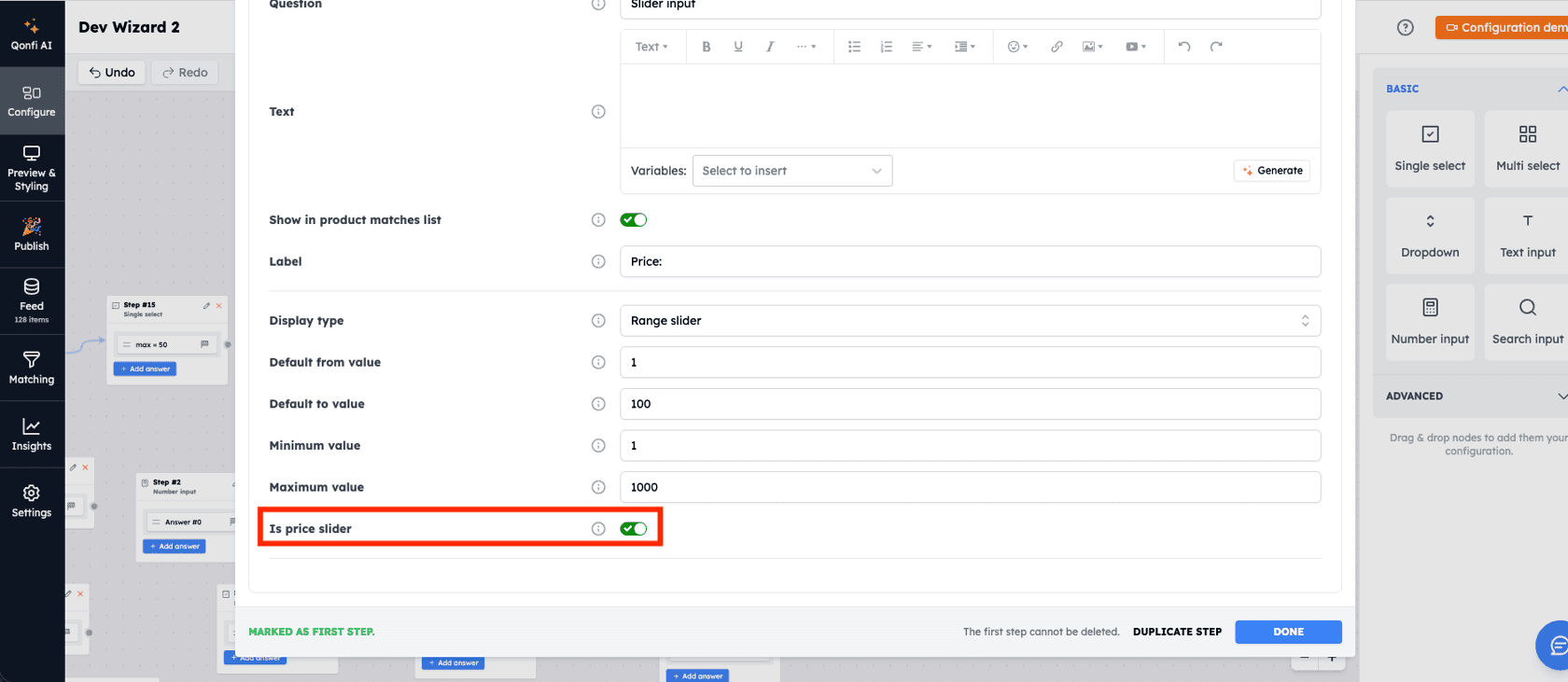
This will result in a range slider where the value is formatted as a price.

Was this article helpful?
Yes
No

