Tracking Qonfi events in GA4 (Google Analytics 4)
Note: this documentation can be used if you don't want to see GA4 data in Qonfi but still want to see Qonfi data in GA4.
Please visit this page if you want to automatically connect Qonfi with GA4 and Google Tag Manager.
Setting up Google Tag Manager (GTM)
We'll be using GTM to pick-up events from Qonfi and send them to GA4.
Step 1: Create a Trigger
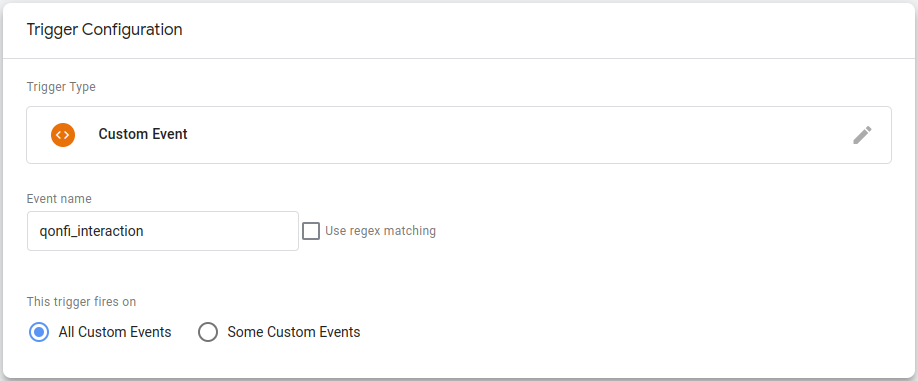
Create a new Trigger in GTM, select Custom Event as the trigger type and use qonfi_interaction as the Event name.
Step 2: Create the required variables
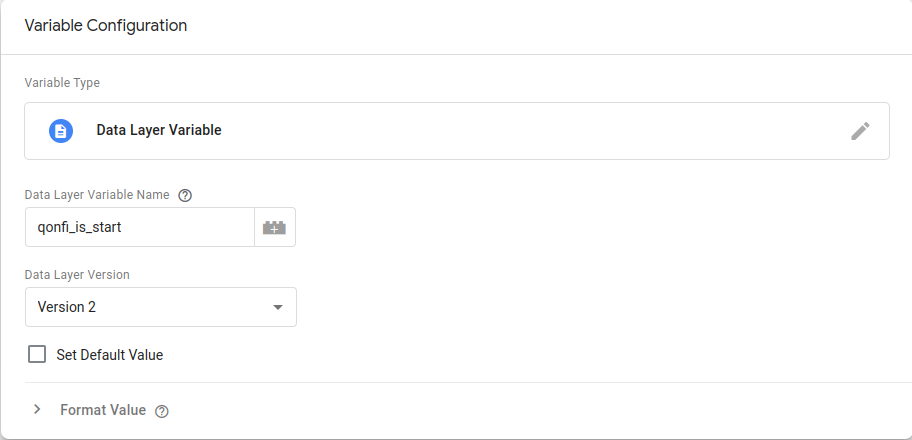
Create the following variables in GTM:
| Name | Type |
| qonfi_question | Data Layer Variable |
| qonfi_answer | Data Layer Variable |
| qonfi_is_start | Data Layer Variable |
| qonfi_is_finish | Data Layer Variable |
| qonfi_is_click_through | Data Layer Variable |
Step 3: Create the tag
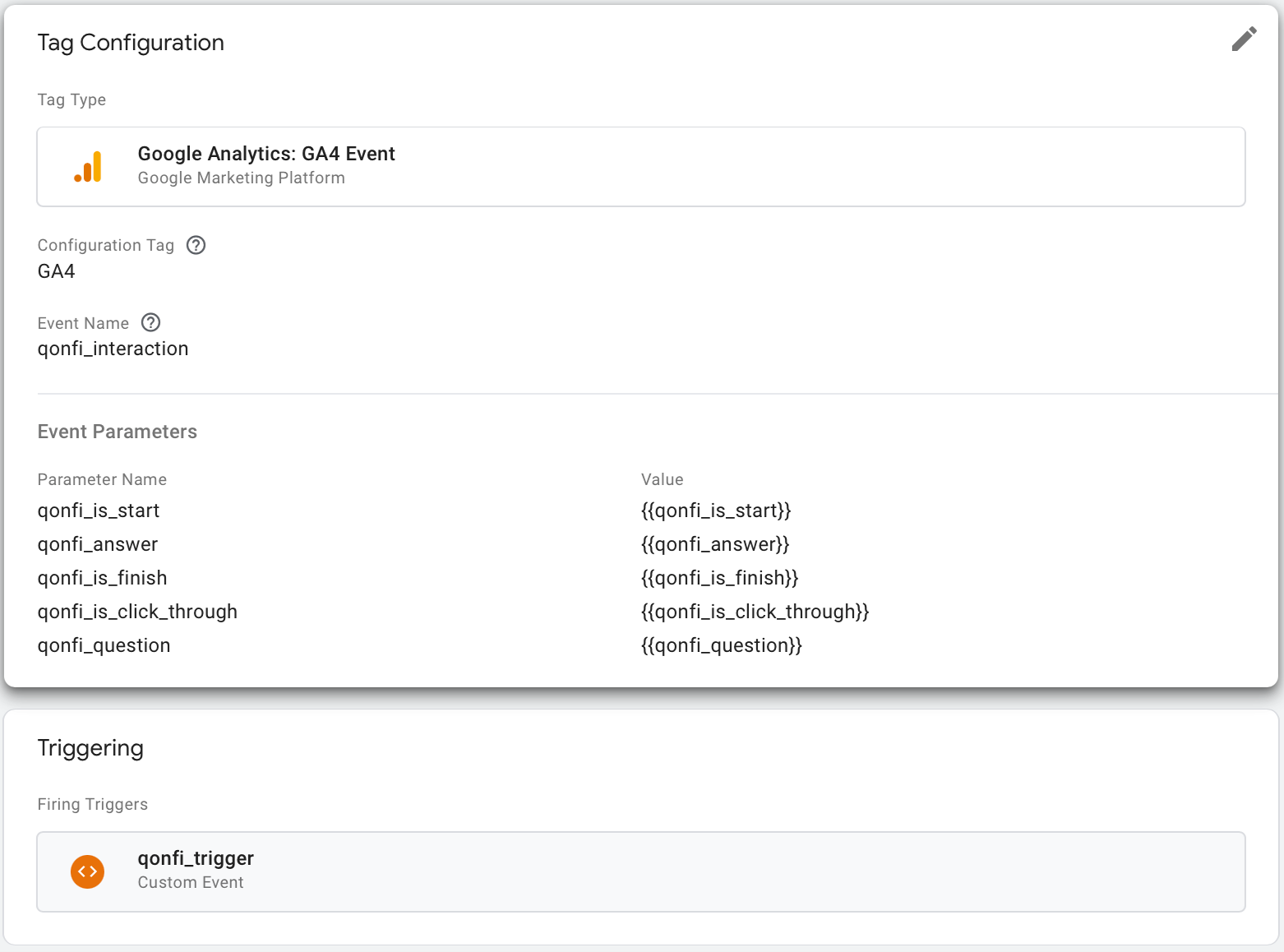
Create a tag using the Google Analytics: GA4 Event type. Use qonfi_interaction as the Event Name and add all the previously created variables under Event Parameters. Add the Trigger created in Step 1 as the trigger for this tag. Give your tag a name and save the tag.
Step 4: Publish and test your configuration
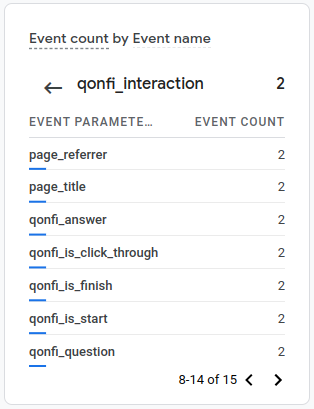
Preview and test your changes in Google Tag Manager. Once all events are correctly firing you can publish your changes. Once published, your Qonfi events will start flowing into GA4.
Step 5: Creating custom dimensions in GA4
To use the event parameters in your GA4 reports, you'll need add these parameters to your custom dimensions.
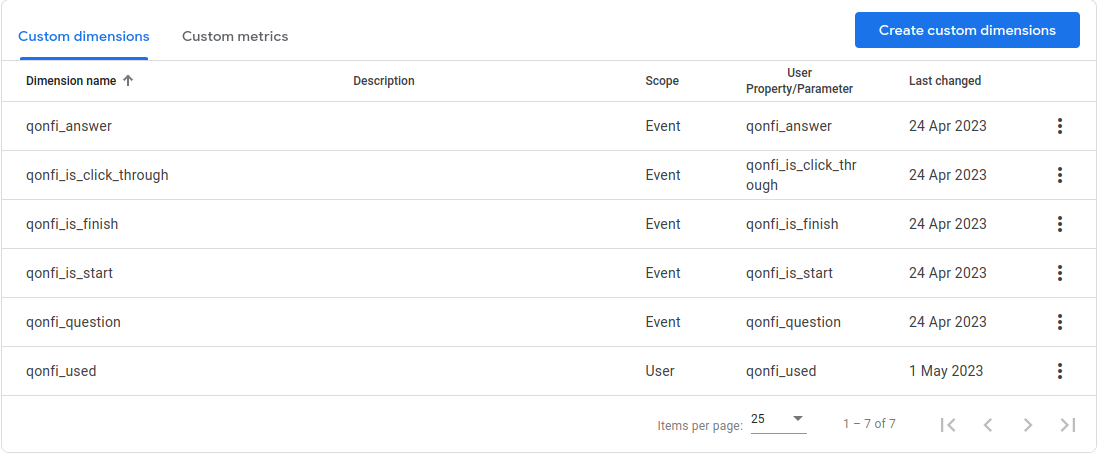
In GA4 go to Settings -> Custom Definitions and click on Create custom dimensions. Add the following 5 custom dimensions, including the corresponding dimension name and event parameter.
Choose Event as the scope for all dimensions. Select the correct Qonfi parameter from the Event parameter drop-down. Repeat this for every Qonfi parameter you want to use in your reports.
| Dimension name | Event parameter |
| qonfi_question | qonfi_question |
| qonfi_answer | qonfi_answer |
| qonfi_is_start | qonfi_is_start |
| qonfi_is_finish | qonfi_is_finish |
| qonfi_is_click_through | qonfi_is_click_through |
Please note that it could take up to a day, before the Qonfi event parameters show up in the Event parameter drop-down in GA4, after the first Qonfi event is fired on your website for the first time.
Analyzing performance and user behavior
Once your Qonfi events are tracked in GA4, you can start analyzing the impact of Qonfi.